
A public page, a Register button
Your upcoming events on one clear page, a registration page for each of them, and a list that keeps itself up to date.
For the public
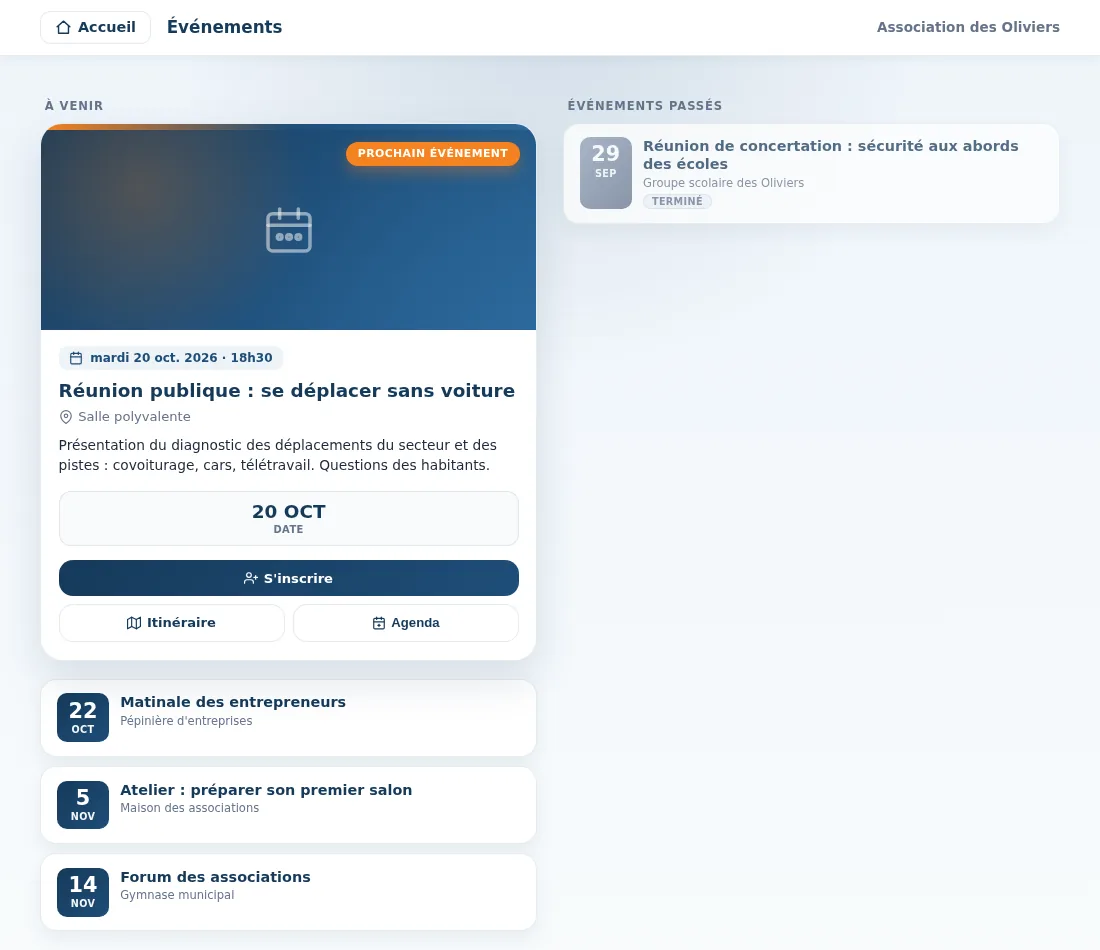
Your events page
The next one first
The next event shown large, the following ones as cards, and the most recent past ones to show that things are happening.
Directions and calendar
One button opens directions; the “Calendar” button adds the event to the phone's calendar, with an alert three hours before.
On your website, and for Google
With the Ngento website, add an Events section: your upcoming events appear there with their Register button, described for Google (name, date, venue).
For participants
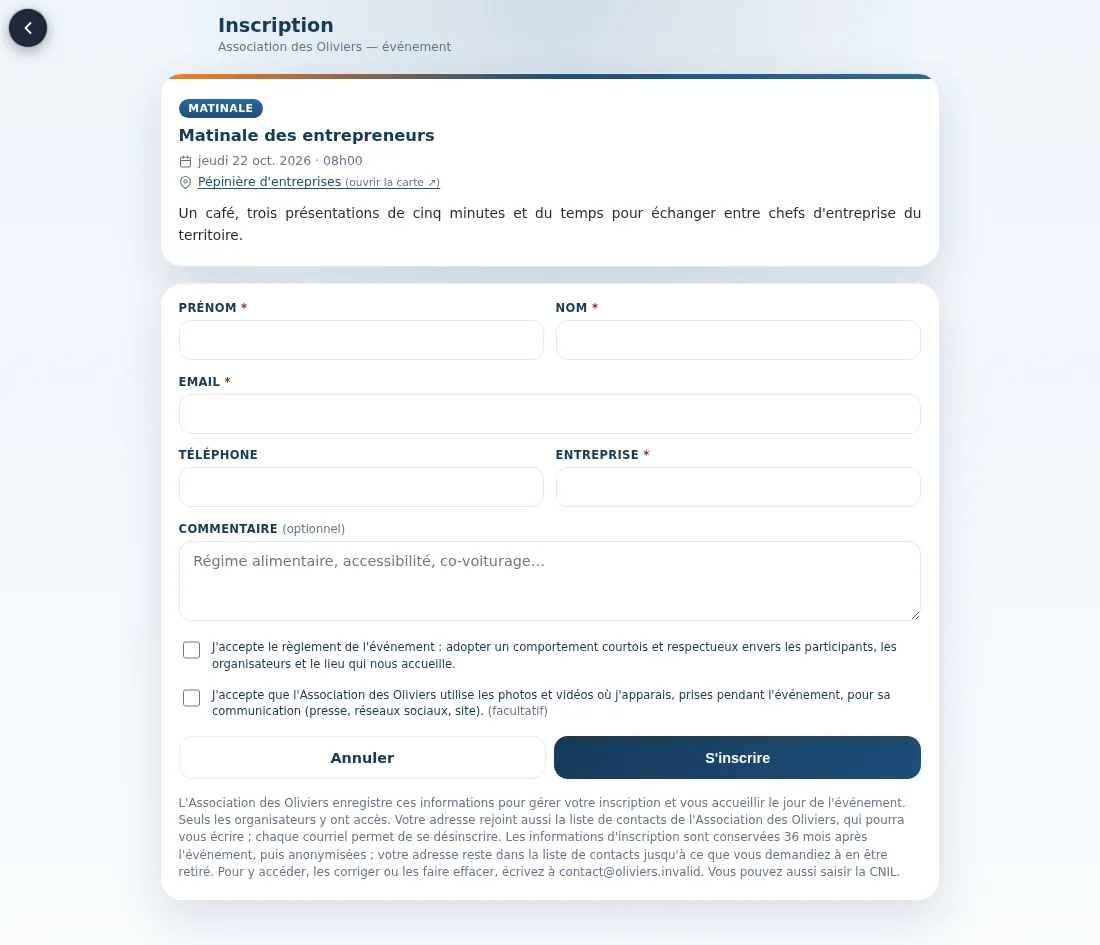
Register in a minute
First name, last name and email are asked for, plus company or organisation if you wish; phone and a message (dietary needs, accessibility, car sharing) are optional. The person ticks your rules, if you have any: the date and the text of the rules in force, in the language they were written in, are kept. Consent to photos and videos is a separate box, which they can leave unticked.
They immediately receive an email, sent from your account's address: a confirmation, or a waiting-list notice if the event is full. If they register a second time with the same address, they're recognised: no duplicate, no second confirmation. And when the first and last names have clearly been swapped, they're put back in the right order.
Settings
Your form, your rules
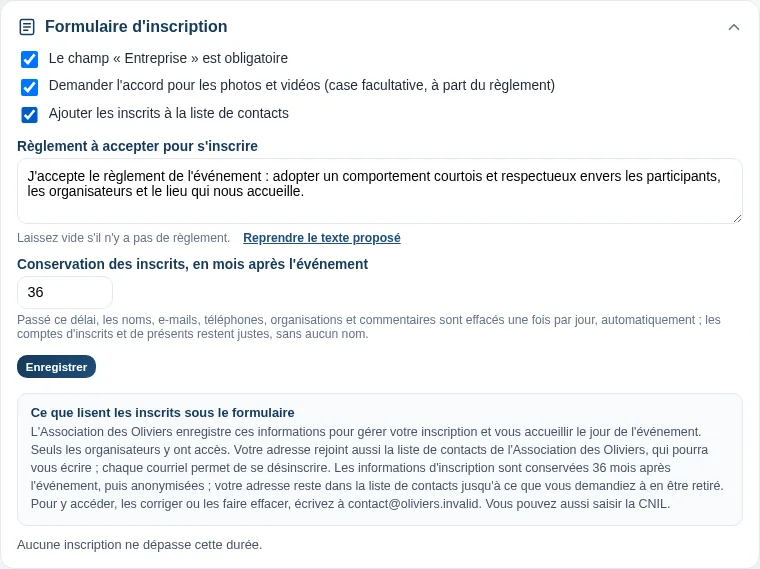
In the management screen, one panel sets up the form for all your events: the “Company” field required or not, your own rules (or none), whether to ask about photos, and whether registrants join your contact list.
You also set how many months registrants are kept after the event. After that, their names and contact details are erased from your events, once a day, automatically; the counts of registrants and attendees stay accurate, without any names. The notice below the form follows your choices: once your settings are saved, you can read it in the panel as it appears (in French; visitors in another language read it translated).
For organisers
You stay in control
Limited places
You set the number of places. When few are left the page says so (“3 spots left”), then “Full”, and further registrations go on the waiting list.
Scheduled opening
Registration opens when you decide: straight away, later by hand, or on a date set in advance.
Who can register
For each event: open to all, members only, or open once to a non-member who wants to try it. With no members recorded, the rule offered is “open to all”.
Private address
Meeting at a member's home? The address can stay off the public page: only registered people receive it, in their confirmation email.
Drafts as a team
A draft stays hidden from the public and can be filled in by several people at once: each sees what the other types. It goes live in one click.
Your event types
Breakfast meeting, workshop, public meeting, fair: you create your own types, each with its own template running order.
Event details
Creating an event
The map worked out for you
You type the address: the town gets its official name and the map position is worked out from the French national address database.
The host venue
An event at a member's or a company's premises? Look it up by name among your members and the French business register.
A photo
A photo from your phone, your camera or a free photo library.
Good to know
What registration doesn't do today
So you know what to expect: registration is free (no ticketing or payment), and you can't add your own questions to the form. People register one at a time, and there is no unsubscribe link yet. The waiting list is managed by hand: you move someone up to registered, and they then get their confirmation by email.